
How to get rid of Windows 10 – Auto Update features?
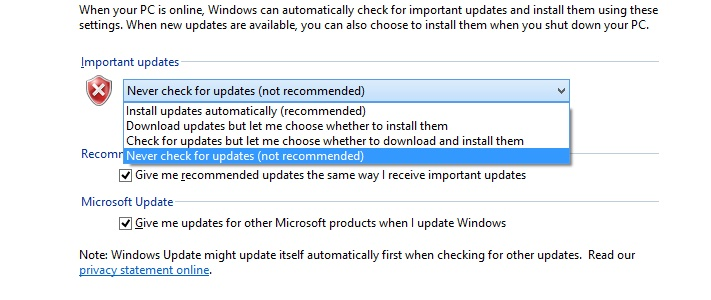
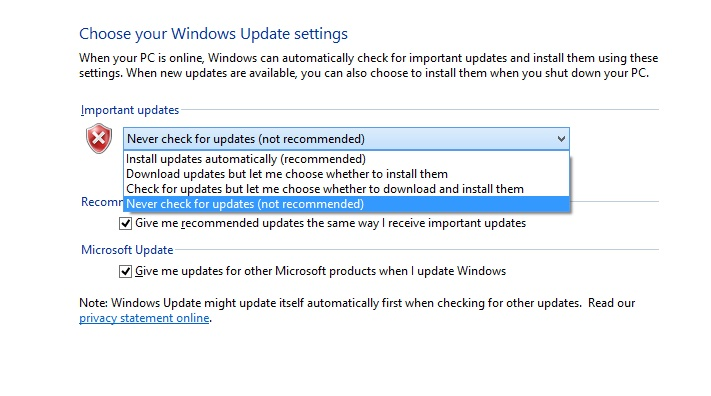
Microsoft added some more significant features in Windows 10 OS which makes this OS more stable and prominent and user friendly windows in compare of other windows 8.1 or below versions. Windows update features is the most powerful things which let users to get the latest update and got the new features developed by Windows OS developers time to time. This features were also added in previous version of windows but they marked it as choosing option to update windows or not as per your convenience given in below image. This is Windows 8.1 (Pro version) windows update settings:
In windows 10 addition, this feature added as permanent features for Home Users which you cannot turn off and for Enterprise users you may only able to delay Windows updates but it does not have option to stop the auto update or download update later because its added as fixed one and it will automatically download the windows update without notify users and automatically installed it when you may reboot your PC or started it next time. This might be the essential part of the windows and Microsoft want Windows 10 users to get the latest update time to time to increase the performance and speed of your PC but sometime this features gets disaster for many users as it takes few hours to complete the installation after downloading the windows update and it may cause heavy loss if it does not get well the windows or get some technical fault.
To prevent this issue or if you don’t want to get the Auto update features in Windows 10 and would like to disable this features for sometimes or want to you choose your action to update windows then you need to just follow these tweaky tricks which gets this Auto update feature disable from your windows 10 and you can get this enable anytime you want too.
Go to control panel >> Click on Administrative Tools >> Click on Services windows or Open Run (Windows +R) dialogue box and type “dcomcnfg” without quotes and then click on Services.
In Services Windows >> Find Windows Update (Usually scroll down to W letter as its arrange by words and double click on it) >> Right click on it and go to Properties.
Now select the Start type drop down list and choose Disabled >> Apply >> Ok
And you are done!
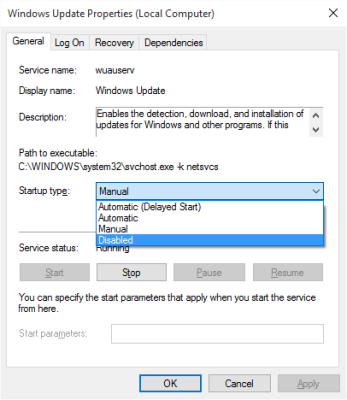
To get started this services again to download the Windows update automatically, click on Automatic >> Apply & Ok.
15 comments on “How to disable windows updates feature in Windows 10?”
Henny
February 9, 2017 at 20:11Thanks for this information. I am able to stop unusual updates from microsoft. Please keep posting such kind of information.
Nicole
June 1, 2017 at 20:11Thanks Henny!
buy enclomiphene tabs uk
purchase enclomiphene generic now
hwat ise le prix de kamagra
kamagra prix canada
online order androxal no prescription usa
buy androxal generic now
buy flexeril cyclobenzaprine canada with no prescription
ordering flexeril cyclobenzaprine canada how to buy
order dutasteride purchase online safely
discount dutasteride cheap genuine
buy cheap gabapentin price by pharmacy
cheapest buy gabapentin for sale usa
24 meds fildena
how to order fildena generic for sale
cost low itraconazole
buy itraconazole in Australia
get staxyn purchase from uk
order staxyn purchase online from india
get avodart generic order
Fedex avodart without a priscription
rifaximin australia legal import
how to order rifaximin uk suppliers
get xifaxan buy uk no prescription
how to get a doctor to prescript xifaxan
nákup kamagra online z kanady
obecná expresní doprava kamagra